Copperline can run a two-player game across two desktop instances or two browsers, and a three- or four-player game across as many desktop instances. Each peer emulates the whole Amiga and owns one controller port. Every player sees their own input after a small configurable delay. Copperline predicts late remote input, then restores and replays frames when that prediction was wrong. This follows the approach described by GGPO; it uses Copperline’s own Rust implementation and wire protocol.
Players three and four play through the four-player adapter on the parallel port, exactly as they would sitting at one machine: two switch joysticks, no mouse and no CD32 buttons. Player 1 hosts, and every other player connects to it; the host passes each player’s controls on to the others, so only the host needs to be reachable. All the players have to be connected before the game starts.
Desktop builds offer direct UDP connections by IP address or encrypted Internet connections with automatic NAT traversal and relay fallback. Browsers use WebRTC with private room invitations and TURN relay fallback when the page has a room service configured; manual connection codes work without one. The host can admit up to eight spectators, who watch the game without playing and may join while it is in progress (see Spectators). There is no public lobby or automatic reconnect. Browser and desktop peers cannot connect to each other, and browser games are always two-player: a web page has no parallel port to plug the adapter into. Use the same Copperline build on every machine; mixed operating systems and browser engines have not yet been qualified.
Set up in the browser
On the browser page, open Controls -> Netplay. The host loads the ROM and disks and chooses the machine settings. The guest receives that setup automatically over the encrypted peer connection. Both pages need the same emulator build. Connecting starts a fresh machine, replacing any running local session: the guest’s page is locked from Join game on, while the host keeps playing, changing disks or adjusting the machine until player 2 arrives, and shares whatever it holds at that moment.
The host clicks Host game and shares the invitation link using Copy invitation, the device share sheet, or the QR code. Advanced contains the controller type, input delay and rollback limit.
The other player opens the link (or pastes it into the invitation field), then clicks Join game. The offer and answer are exchanged automatically. A progress message tracks the transfer of ROMs, both inserted floppy images and machine settings. The host also supplies the controller and delay settings.
The guest verifies every file, then both pages cold-boot and check that their initial machines match. The panel reports confirmed frames, rollbacks and the latest checked frame.
Invitations allow one joining player and expire after 15 minutes. Expiry removes setup data from the service; it does not stop an established game. Share links privately: anyone with a live invitation can claim its remaining place. The link contains an opaque room ID, with no ROM URLs, connection codes or credentials.
The host owns Amiga port 1 and the joining player port 2. On each page, the usual first gamepad, keyboard joystick or touch controls drive that player’s port. Desktop browsers start in keyboard joystick mode; touch devices start with touch controls. Cycle Joystick off to type ordinary Amiga keys. Both keyboards contribute to the shared keyboard. The desktop F11/F12 netplay shortcuts do not apply to the browser.
For games that use two mice, such as two-player Lemmings, the host chooses Advanced -> Controllers -> Two mice before hosting. Each player’s mouse then drives their own Amiga port, including left, right and middle mouse buttons. Touch devices can use the canvas trackpad for movement and left/right clicks. Click the screen to capture the mouse; Escape releases it. Keyboard joystick mode stays off so both players can type ordinary Amiga keys.
Room setup uses a small signaling service. WebRTC tries direct routes and can fall back to a TURN relay. Advanced -> Use relay only forces that route for troubleshooting. Relay credentials expire after 24 hours; start a new session for longer play. WebRTC encrypts game files and input packets, including traffic carried by a relay. The signaling service receives no ROM or disk bytes.
Received files are held only for the session and are not saved into the guest’s remembered-ROM storage. Disconnect restores the guest’s previous media choices and settings. The host shares the main and extended ROMs, DF0/DF1 images and their write-protection flags, model, video standard, floppy speed, drive sounds and mono/stereo setting. Display preferences and volume stay local. ROMs are limited to 2 MiB each and floppy images to 16 MiB each. Starting from a running machine uses the current contents of writable disks; it still cold-boots rather than transferring a running save state.
Changing disks during browser play
When a game asks for another disk, the host opens Controls -> Netplay, selects DF0 (or DF1) under Drive, and chooses the next image under Swap disk. Both machines pause, the guest receives and verifies the replacement, and both resume at the same emulated frame. The guest does not need to select a file. This works with games that require all disks in DF0. Eject selected drive performs a synchronized removal if a game needs to see an empty drive first; choose the next disk when ready. The ordinary local disk controls remain locked.
Replacement images are limited to 16 MiB, including after gzip/zip expansion, and default to write-protected. The controls become available once the disk transfer channel is connected. Allow writes to the replacement disk supports uncompressed standard and UAE extended ADFs. Writable changes are held only in the mounted session image; replacing that disk or disconnecting discards them. Invalid local files leave the game running. An interrupted transfer or a state mismatch ends the session rather than allowing the players to continue with different disks.
Watching a browser game
Every game hosted through Host game admits up to eight spectators; manual connection codes have no room service and so no spectators. Besides the player invitation, the panel shows a Spectator invitation with its own copy and share buttons and QR code; once player 2 has joined, the spent player invitation is hidden and only the spectator invitation stays on show. The two links are not interchangeable: a spectator link cannot claim the player 2 place, and a player invitation cannot be used to watch, so the page offers Watch game for a spectator link and Join game for a player invitation, never both. A spectator who finds every place taken is told so instead of waiting. Spectators open the link and click Watch game. They receive the host’s ROMs, disks and machine settings exactly like player 2, cold-boot the same machine, and then replay the game from its first frame until they are level with the players, so a spectator can join at any point while the game lasts. Catching up runs unpaced and silent; a long game takes a while to replay, and the host stops admitting new spectators once it retains more than 64 MiB of history. The panel reports the spectator’s frame, how far behind it is and the last checked frame; the host’s status line counts who is watching.
Spectators send no input and cannot change disks: their machine follows the host’s confirmed timeline only, a few frames behind the players, and every checkpoint the players verify is verified again on the spectator. When the host changes a disk, spectators receive the same image and apply it at the same frame. A spectator’s page has the same locked controls as a guest; Disconnect stops watching without affecting the players, and a spectator that stalls or diverges is dropped by the host on its own. The spectator invitation stays valid while the host is playing and expires 15 minutes after the host stops.
If a connection ends, use Copy diagnostics on both devices. The report keeps ICE, peer, data-channel and DTLS states, candidate types and packet counters. It excludes network addresses, SDP, invitation/session tokens and credentials. A route that opens before DTLS fails needs different investigation from failed ICE discovery. Browser versions alone do not establish the cause.
Advanced -> Manual connection codes works without the room service. The host clicks Host with manual codes, sends its code to the guest, and the guest pastes it and clicks Join offer. The guest sends its answer back; the host pastes it and clicks Connect answer. The STUN field helps discover routes; leave it blank for LAN-only discovery. Manual setup has no relay fallback. The host’s files and settings are transferred after manual signaling too. The codes are large and contain network addresses and session details, so exchange them privately. If the page has no room service configured, Advanced opens by default.
Keep both pages open. A suspended tab can stall its peer and eventually time out; background execution depends on browser and device restrictions. Machine, media, serial, floppy sound, pause and save-state controls are locked from the moment the page captures its media (Join game or Watch game for a guest or spectator, player 2’s arrival for the host) until disconnect. Display and main output volume choices remain local. Floppy sound enablement and level are part of the machine fingerprint and must match. Disconnect cancels setup or stops play, discards session disk writes, and restores the selected cold-boot media. Either player can host or join again with a new invitation or new manual codes. The browser does not resume the abandoned network timeline as local play.
Set up in the GUI
Open Machine Configuration -> Netplay (or start Copperline with no arguments). The host chooses the machine, ROM and game media on the existing configuration pages, including WHDLoad or supported hard-drive images. Enable Netplay on every computer. The guests receive the host’s setup and need no local copy of the game files.
IPF disks work with both desktop connection methods. Setup preserves their raw tracks and protection-track timing, including all 168 track slots. They remain write-protected, just as in local play.
Internet connections
Choose Connection -> Internet on every computer. This mode uses iroh to establish an encrypted connection and find a direct route through NAT. If a direct route is unavailable, packets travel through an HTTPS relay. No port forwarding is normally needed.
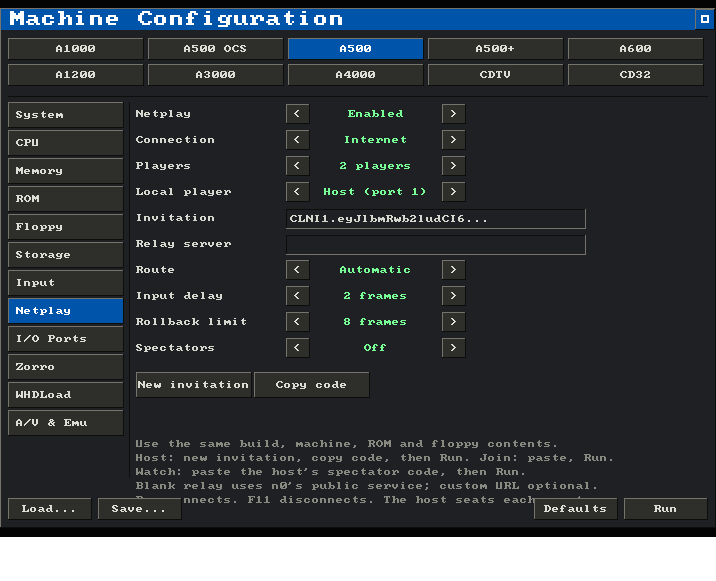
The host sets Local player to Host (port 1), sets Players, Input delay and Rollback limit, then clicks New invitation and Copy code. Send that code privately to the other players, then click Run.
Each guest sets Local player to Join (next free port), pastes the code into Invitation, and clicks Run. The invitation supplies the host’s timing, player count and relay settings, and the host seats each guest on the next free controller port as it arrives. The host then transfers the machine settings, ROMs and game media. A guest’s saved configuration and original files remain unchanged.
The cold machine waits for the other players before running. The connection message reports the route; the log records changes between direct and relay paths. F11 cancels setup or disconnects play. Setup times out after 15 minutes.
Leave Relay server blank to use n0’s public iroh relays. These are external services, with rate limits and availability controlled by their operator; n0 describes them as suitable for development and testing. For sustained use, the host can enter the HTTPS URL of a self-hosted iroh relay. This field takes an iroh relay, not a STUN/TURN server. The invitation carries its relay addresses, so the guest needs no separate server setup. Address lookup services are not used. See iroh’s relay guidance.
Route -> Relay only disables direct IP paths for troubleshooting or when you prefer to keep peer traffic on the relay. Relay operators can observe connection metadata and traffic volume, but the payload is encrypted end to end. Share the invitation privately: it identifies the host and admits whoever holds it to any free player place. Host keys stay in memory and are never included in invitations or saved configurations. Generate a new invitation for a new game, or after changing host timing or relay settings. A relay outage can prevent connection; Direct IP remains available for reachable peers. Networks that also block the relay’s HTTPS connection may still require a permitted network path.
Internet support is included in default native builds by the netplay-internet
Cargo feature. Browser and desktop invitation formats are separate.
Direct IP connections
Choose Connection -> Direct IP (UDP) on every computer.
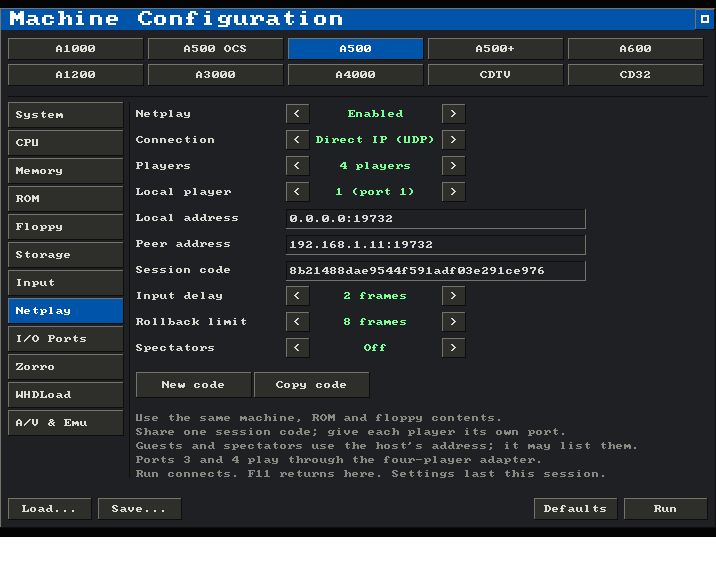
Set Local player to 1 (port 1) on one computer, and to 2, 3 or 4 on each of the others. Player 1 sets Players to the number taking part.
Leave Local address at
0.0.0.0:19732to listen on all local IPv4 interfaces. On each guest, set Peer address to the host’s reachable IP and port, for example192.168.1.10:19732. The host may list the guests it will accept, separated by commas, or leave the box empty to accept anyone who has the session code. For IPv6, use bracketed addresses such as[::]:19732and[2001:db8::2]:19732on every peer.Player 1 clicks New code, then Copy code, and shares it with the other players, who paste it into Session code. Cmd+V on macOS or Ctrl+V elsewhere replaces the focused address/code box; Return commits an edit and Escape cancels it.
Player 1 chooses Input delay and Rollback limit. Click Run on every computer. Player 1 sends the setup and files to each guest; every window waits for verification, and for the last player to arrive, before emulation begins.
Players sets how many controller ports the game uses. Choosing three or four fits the four-player adapter with a joystick in each of its sockets, so Local player then offers ports 3 and 4 as well. Only the host sets the count; everyone else is told when they join.
Enabling netplay changes analogue, gamepad-mouse and empty ports to joysticks, turns serial and JIT off, disables run-ahead and warp boot, and enables power on. Existing mouse/joystick/CD32 ports stay selected. These changes are visible on the other configuration pages; Run reapplies them after model or configuration changes. The host chooses ROMs, media, storage and controller devices; Run explains any incompatible setting. For a two-mouse game, the host selects Mouse on both ports; for a two-joystick game, Joystick on both ports. Joining temporarily replaces the guest’s machine while retaining its saved configuration choices.
F11 disconnects and returns to the Netplay page with the connection details intact. A connection failure also returns there, showing its error. Correct the settings and press Run on every peer to start again from cold boot. The peer addresses, session code, player and delay/rollback settings are kept for the current app session; Save does not put them in machine configuration files.
The GUI and CLI can connect to each other when both select the same transport. An app started with a control or GDB endpoint must be restarted without that endpoint before enabling netplay in the GUI.
Spectators
The host’s Spectators row admits up to eight spectators (Off by default).
A spectator chooses Local player -> Watch (Internet) or Spectator
(Direct IP). In Internet mode the host clicks New invitation after setting
the spectator count; Copy spectator code then copies a separate CLNS1.
code, which the spectator pastes into Invitation. A player invitation does
not admit a spectator and a spectator code does not admit a player. In Direct
IP mode the spectator enters the host’s address as the peer address, pastes
the players’ session code, and connects to the host’s existing UDP port; no
extra port is opened.
Spectators can join before the game starts or while it is running. They receive the host’s machine setup and media like a guest, cold-boot the same machine, and replay the host’s confirmed input history from frame zero, unpaced and silent, until they are within a few frames of the players; the OSD reports the catch-up. From then on the spectator follows a few frames behind the players, verifying the same checkpoints and applying the host’s floppy changes at the same frames. Spectators own no controller port: keys, mice and gamepads never reach the shared machine, the disk controls are disabled, and only the Quit, Fullscreen and F11 shortcuts apply. A spectator leaving or failing never interrupts the players; the host drops a spectator that stops responding for ten seconds. A game that has been running for a long time takes correspondingly long to replay, and the host stops admitting new spectators once it retains more than 256 MiB of history.
Start from the command line
Give the host the ROM, game files and machine settings. A floppy can come from
the configuration or --insert-disk-after 0 df0 PATH. The guest supplies only
connection details. The host can also use --whdload game.lha, --run program,
directory volumes, or IDE/SCSI/LIDE hard-drive images. Netplay takes a private
copy of these volumes; in-session writes and saves do not update the original
game directory or hardfile.
For Internet play, the host writes an invitation to a file:
copperline --factory --model A500 --serial off --port1 joystick --port2 joystick \
  --netplay-host invitation.txt --insert-disk-after 0 df0 game.adf KICK13.ROM
The guest copies the code from that file and supplies it as one argument:
copperline --netplay-join 'CLNI1.PASTE_THE_FULL_CODE_HERE'The host may add --netplay-relay https://relay.example.com for a custom iroh
relay. Either peer may add --netplay-relay-only. The host chooses
--netplay-delay and --netplay-rollback; the guest inherits them. Internet
flags cannot be combined with direct IP, player or session-ID flags.
To admit spectators, the host adds --netplay-spectators N (1 to 8) and, in
Internet mode, --netplay-spectator-invite PATH to write the separate
spectator code:
copperline --factory --model A500 --serial off --port1 joystick --port2 joystick \
  --netplay-host invitation.txt --netplay-spectators 4 \
  --netplay-spectator-invite spectators.txt --insert-disk-after 0 df0 game.adf KICK13.ROM
A spectator supplies that code, and nothing else, with --netplay-watch:
copperline --netplay-watch 'CLNS1.PASTE_THE_SPECTATOR_CODE_HERE'--netplay-relay-only applies to spectators too. Scripted input, media
changes and the timing flags are rejected for a spectator; scheduled
screenshots work as they do for players.
For direct IP play on a LAN where the players are 192.168.1.10 and 192.168.1.11:
# Player 1, on 192.168.1.10:
copperline --factory --model A500 --serial off --port1 joystick --port2 joystick \
  --netplay-bind 0.0.0.0:19732 --netplay-peer 192.168.1.11:19732 \
  --netplay-player 1 --netplay-session 8b21488dae9544f591adf03e291ce976 \
  --insert-disk-after 0 df0 game.adf KICK13.ROM

# Player 2, on 192.168.1.11 (no local ROM or disk required):
copperline \
  --netplay-bind 0.0.0.0:19732 --netplay-peer 192.168.1.10:19732 \
  --netplay-player 2 --netplay-session 8b21488dae9544f591adf03e291ce976
The host repeats --netplay-peer once per guest, or omits it to accept
anyone who has the session code. Omitting it is convenient, but the session
code is then the only thing standing between a stranger and a controller
port, so keep the advice below about VPNs in mind.
Four players on the command line
Players three and four need the adapter, which --netplay-players and
--port3/--port4 fit:
# Player 1 hosts all four ports:
copperline --factory --model A500 --serial off \
  --port1 joystick --port2 joystick --port3 joystick --port4 joystick \
  --netplay-bind 0.0.0.0:19732 --netplay-players 4 \
  --netplay-player 1 --netplay-session 8b21488dae9544f591adf03e291ce976 \
  --insert-disk-after 0 df0 game.adf KICK13.ROM

# Players 2, 3 and 4, each on their own machine:
copperline --netplay-bind 0.0.0.0:19732 --netplay-peer 192.168.1.10:19732 \
  --netplay-player 3 --netplay-session 8b21488dae9544f591adf03e291ce976
Every guest names the host and its own player number; the host needs no
--netplay-peer unless it wants to restrict which addresses may join. Only
the host passes --netplay-players, and its machine needs a joystick in
each adapter socket the session uses. The same flag works for an Internet
host, whose invitation then carries the count:
copperline --factory --model A500 --serial off \
  --port1 joystick --port2 joystick --port3 joystick --port4 joystick \
  --netplay-players 4 --netplay-host invitation.txt \
  --insert-disk-after 0 df0 game.adf KICK13.ROM
A direct IP spectator names the host’s endpoint and the players’ session ID;
the host adds --netplay-spectators N, and spectators share its UDP port:
# Player 1 admits two spectators on its existing port:
copperline ... --netplay-player 1 --netplay-session 8b21488dae9544f591adf03e291ce976 \
  --netplay-spectators 2 ...

# A spectator, anywhere that can reach player 1:
copperline --netplay-watch 192.168.1.10:19732 \
  --netplay-session 8b21488dae9544f591adf03e291ce976
--netplay-bind picks the spectator’s local endpoint; it defaults to any
address and an ephemeral port.
Use a fresh 32-digit hexadecimal session ID for each game, shared with your
peer; openssl rand -hex 16 generates one. The example ID is illustrative.
Allow the chosen UDP port through each host’s firewall. Across the internet,
both endpoints must be reachable at the addresses given to the other peer,
usually through port forwarding or a private VPN. A VPN also supplies
transport encryption and authentication: the direct UDP transport sends
inputs and game files in cleartext, and its session ID distinguishes games
rather than authenticating a person. Connect only to a trusted peer.
Both windows wait until the transferred setup produces matching initial machine
fingerprints. Different builds or corrupt transfers stop the connection. A
fitted guest clock defaults to 2000-01-01 UTC; the host can choose another
starting time with --rtc-time.
Change desktop floppy disks
The host uses the status bar’s load, next-disk and eject buttons for DF0-DF3.
The load picker can select a playlist; Cmd+D on macOS or Alt+D elsewhere cycles
it. Dropping floppy images loads a playlist into the first connected drive.
The guest’s media controls are disabled. The host can schedule a replacement
with --insert-disk-after SECS dfN PATH at a nonzero emulated time, or an
eject with --eject-disk-after SECS dfN.
Both peers stop at a confirmed frame, verify and transfer the replacement, apply it together, then resume. A bad local file leaves the current game running; a failed transfer ends the session. The picker keeps the connection alive while the host selects files. Disk changes never write received data over the guest’s original files.
Desktop setup allows up to 512 MiB of media in total, with a 256 MiB limit per hard drive, 16 MiB per floppy (including decompression), and 2 MiB per ROM. Machine, expansion and video RAM together are limited to 64 MiB, and the rollback snapshot budget may require a smaller machine or prediction window. Host filesystem mounts, including WHDLoad and executable boot volumes, become OFS images, preserving their volume name and boot priority; normal Amiga filesystem filename limits apply. Directory mounts already on IDE, SCSI or LIDE keep their configured filesystem. Received ROM and hard-drive files are staged in a private temporary directory which is removed at disconnect.
Controls
Each player controls the Amiga port their player number names. For
joystick/CD32 ports, a connected gamepad drives the local port. Without a
gamepad, the first keyboard controller mapping drives it: by default the
arrows move, right Ctrl fires, and left Alt is the second button. The
existing saved input mappings apply. The desktop host chooses mouse,
joystick or cd32 for each game port; the guests inherit those choices.
Ports 3 and 4 are adapter sockets and always carry switch joysticks, so a
player on one of them has no mouse and no CD32 buttons. A mouse port takes
that player’s host mouse, with keyboard typing enabled automatically. For
two mice, pass --port1 mouse --port2 mouse on the host. Mixed mouse and
joystick/CD32 configurations also work on desktop.
Audio output device selection (including Disabled), display preferences and host input preferences such as mouse sensitivity remain local to each player.
For joystick/CD32 ports, press F12 to switch between keyboard controller mode and typing on the Amiga keyboard. Typing mode sends keys such as Return and the arrows to the guest instead of consuming them as controller bindings. Keyboard input from every peer is combined: a key stays pressed while any player holds it. Losing window focus releases local held controls on the next sampled frame.
The host Quit and Fullscreen shortcuts remain available (Cmd+Q/Cmd+F on macOS, Alt+Q/Alt+F elsewhere). Click the display to capture the mouse; Cmd+G on macOS or Alt+G elsewhere releases or captures it. Menus, resets, pause, debugger access, save states, and media changes other than host floppy swaps are unavailable while connected. Press F11 to return to setup, or close the window to end the session; the remaining peers stop after their timeout. Scripted mouse and analogue input remain unavailable during netplay.
Delay and connection limits
| Option | Default | Range | Purpose |
|---|---|---|---|
--netplay-delay | 2 | 0-6 frames | Delays local input to reduce corrections |
--netplay-rollback | 8 | 1-12 frames | Caps prediction while waiting for input |
--netplay-spectators | none | 1-8 | Spectators the host admits |
--netplay-players | 2 | 2-4 | Controller ports in play |
Desktop guests inherit these values from the host. At PAL’s nominal 50 Hz, two frames are about 40 ms. Zero delay gives immediate local input but can produce more visible corrections. Rollback reduces perceived latency; it cannot remove network delay. Mouse movement is combined into one sample per emulated frame, so moving faster does not send more input packets. Continuous movement can still require frequent corrections when remote input arrives late. The desktop finishes rendering each corrected frame so repeated corrections cannot starve the background renderer. If movement also causes audio or emulation to slow down, try increasing the host’s input delay to 3 or 4 frames to reduce replay work.
If input or its acknowledgement falls too far behind, emulation waits and resumes when it arrives. History uses at most 256 MiB; an oversized snapshot window stops with a memory-budget error.
Unacknowledged inputs are retransmitted, so loss, duplication, and reordering do not by themselves lose button transitions. Confirmed machine states are checked every 60 frames. A mismatch stops the session with the affected frame number. The machine handshake times out after 60 seconds; an established connection stops after 10 seconds without a valid peer packet. Browser code exchange precedes the handshake: gathering addresses has a 15-second limit, and connecting an accepted answer has a 60-second limit. Waiting for a player to paste a code has no timer.
Audio plays once on the initial execution of a frame. Replayed frames are silent. A sound already played from an incorrect prediction cannot be taken back, so large corrections can produce audible as well as visual discontinuities.
Desktop diagnostics
The console normally shows connection status, route changes and the final frame summary, plus warnings and errors. Detailed Internet transport and tracing logs are disabled by default. To enable them for troubleshooting, set the environment variable before starting Copperline:
COPPERLINE_NETPLAY_DEBUG=1 ./target/release/copperlineThe flag is read once at startup; unset it to return to normal logging. Detailed
transport logs can include peer and relay addresses. An explicit RUST_LOG
setting takes precedence over this logging preset, including the debug flag.
Supported machines and verification
Use a cold boot with interpreter execution, matching mouse/joystick/CD32 port configurations on every peer, serial off, and rewind/run-ahead disabled. The parallel port must be empty or carry the four-player adapter; a printer or sampler is a host peripheral and is refused. Floppy images become session-local memory images; guest disk writes can be rolled back and do not modify the original files. Disk changes and in-session saves are not persisted.
Desktop converts host directory volumes (including --run and WHDLoad
staging) to private disks and supports IDE/SCSI/LIDE hardfiles. The
copperhf asynchronous controller, ATAPI images, physical drives, live
networking/MIDI/parallel peripherals, CD images, persistent NVRAM, debugger
traces, and recordings are excluded, because these devices and observers
keep state outside the rollback snapshots. Netplay uses session-only
clock/NVRAM storage. A state file cannot be used to bypass these
restrictions: this version does not accept --load-state or USS imports
for netplay.
The Toccata sound board is also excluded: its rate-specific resamplers do not yet produce a stable byte order for the checkpoint hashes.
For headless verification, every peer can add --noaudio and a
--screenshot-after SECS PATH with the same timestamp. Scheduled captures
wait for actual remote input and acknowledgement of the local input before
rendering and exiting. --press-after and --key-after feed the
synchronized keyboard; --joy-after ... PORT must name that peer’s own
port. Input schedules belong to each peer and need not be identical. The
other scheduled work is refused under netplay: --save-state-after,
--gif-after, --audio-wav, --audio-stems, --record-input,
--insert-cd-after, --freeze-after, the scripted mouse, pointer,
analogue and light-pen flags, --warp-boot/--warp-until, and a guest’s
--insert-disk-after or --eject-disk-after.
The local smoke check starts every peer, schedules a button press on each,
and compares confirmed PNGs and checkpoint logs. --players N runs a
three- or four-player game through the adapter. --spectators N adds
spectators that join a second after the players connect
(--spectate-after SECS changes the delay), replay the history, and must
produce the same PNG as the players. --internet runs the peers over
Internet invitations and the public relays, and --relay-only adds
--netplay-relay-only. A headless host keeps serving connected spectators
for up to five seconds after its own capture so their replay is complete:
python3 tools/check-netplay.py --binary target/release/copperline
# Add the host's machine options after --, for example:
python3 tools/check-netplay.py --seconds 10 -- --config game.toml
python3 tools/check-netplay.py --seconds 20 --spectators 2
python3 tools/check-netplay.py --seconds 10 --players 4
A spectator’s log ends with netplay: spectating finished frames=... checked=....
The implementation and regression-test plan are described in Netplay internals.